Create RCS Templates
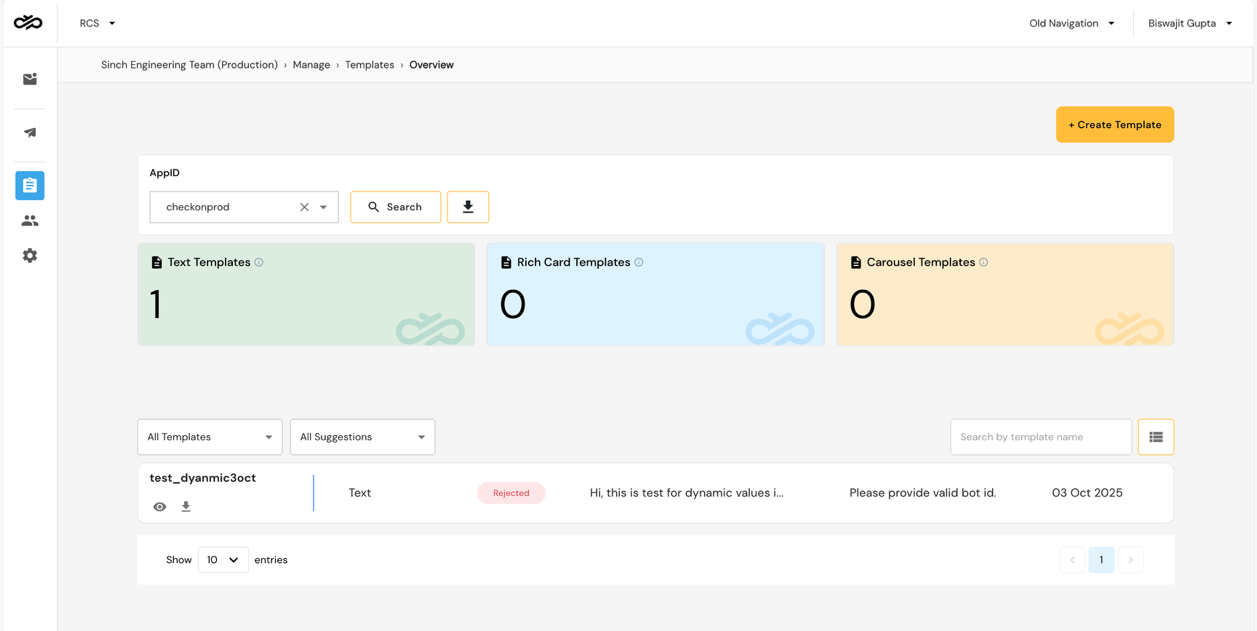
Navigate to Templates → RCS → Create Template.
Template Details
| Field | Description |
|---|---|
| Template Name | Unique name (alphanumeric, underscores allowed) |
| Sender (App ID) | Select the RCS sender profile |
| Template Type | Text / Rich Card / Carousel |
| Tags | Classification tags (optional) |
Template Content Configuration
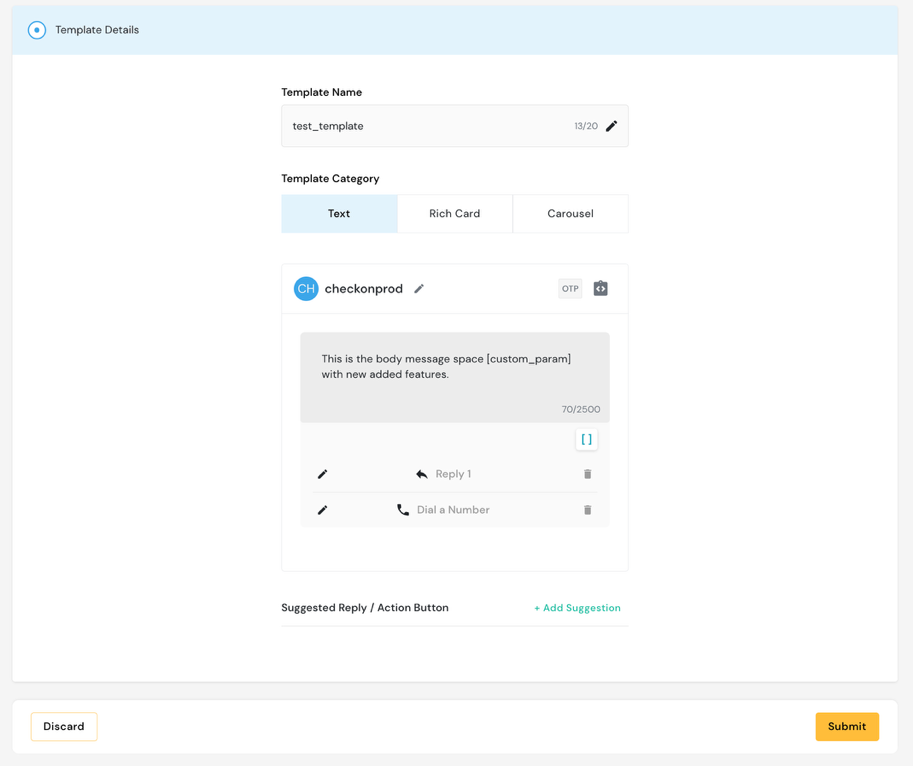
Text Message
A simple text-based RCS message with optional suggested replies and actions.
- Enter message body text
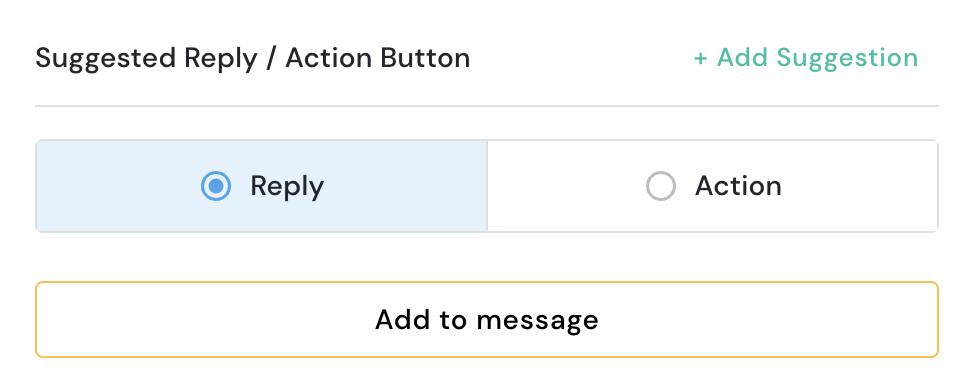
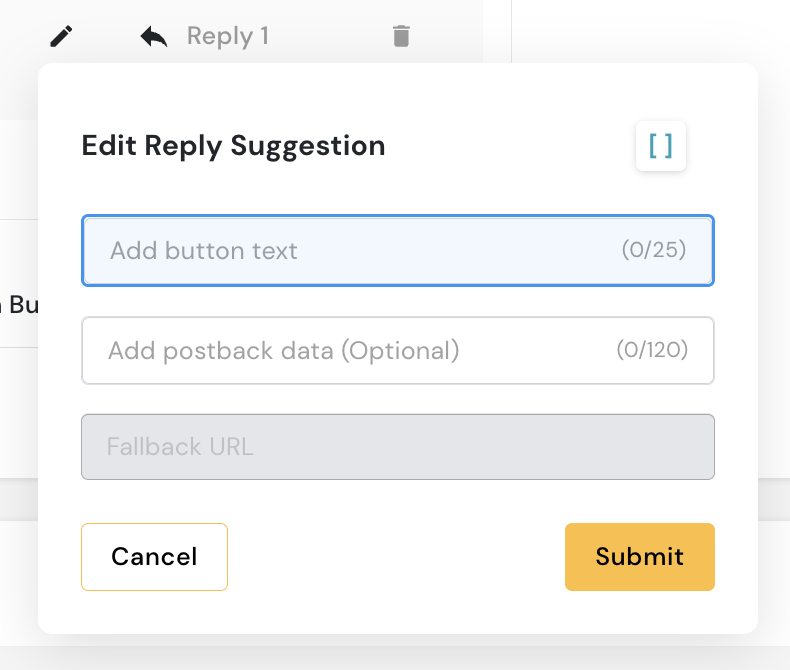
- Add suggested replies (up to 11)
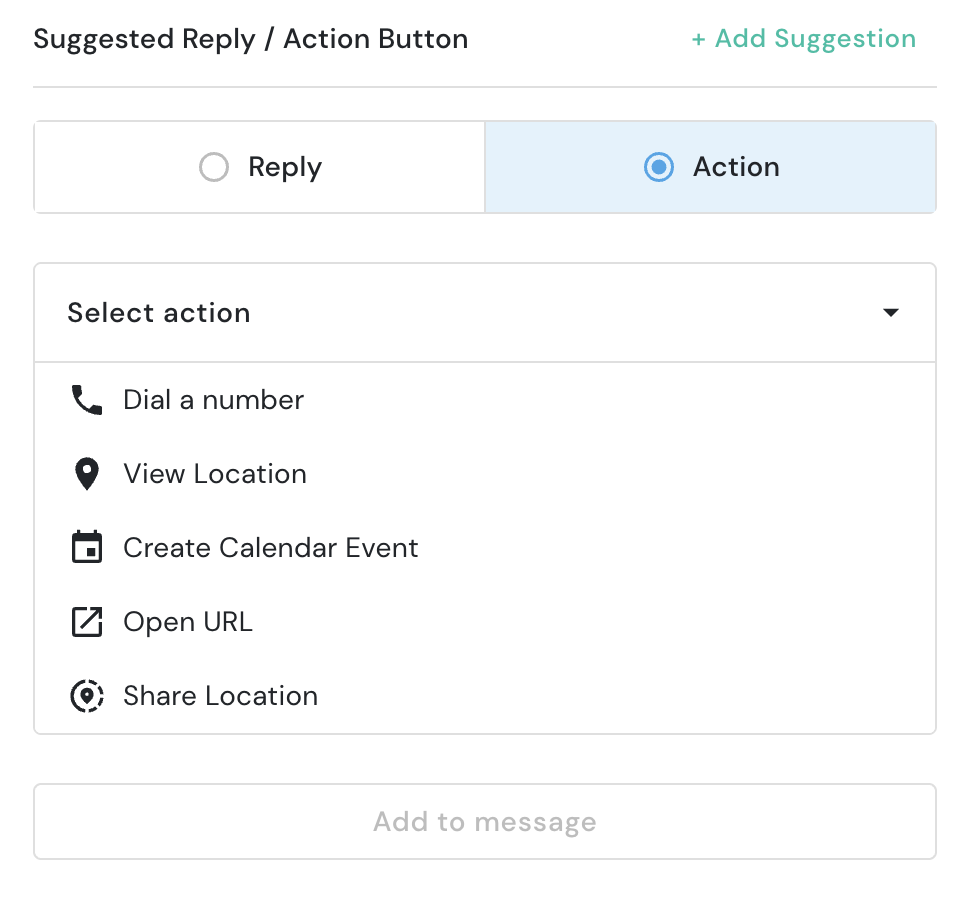
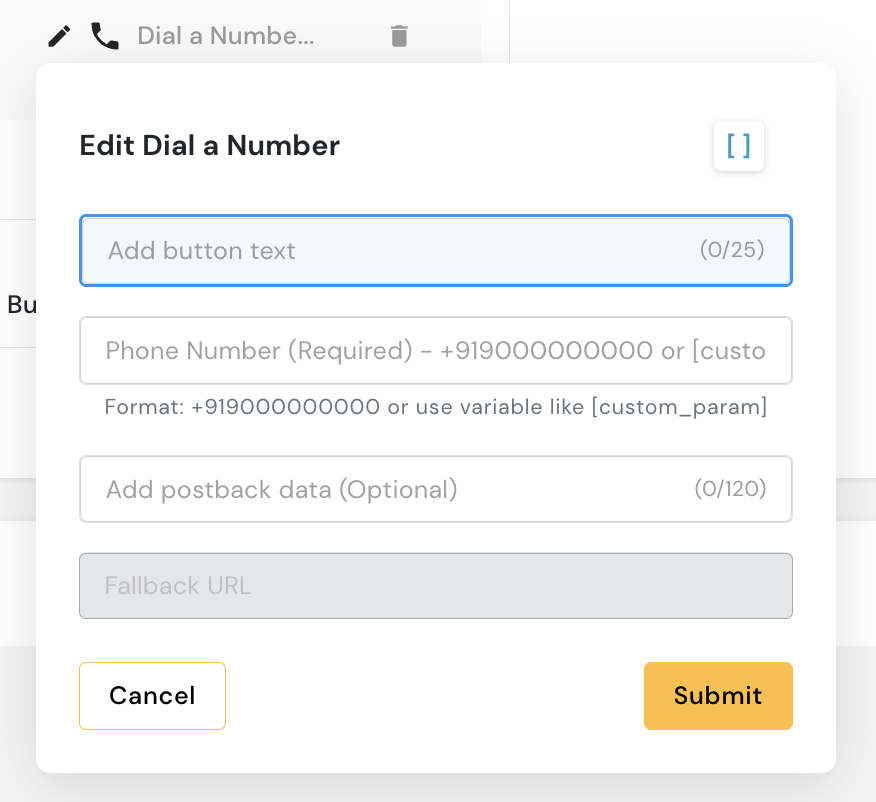
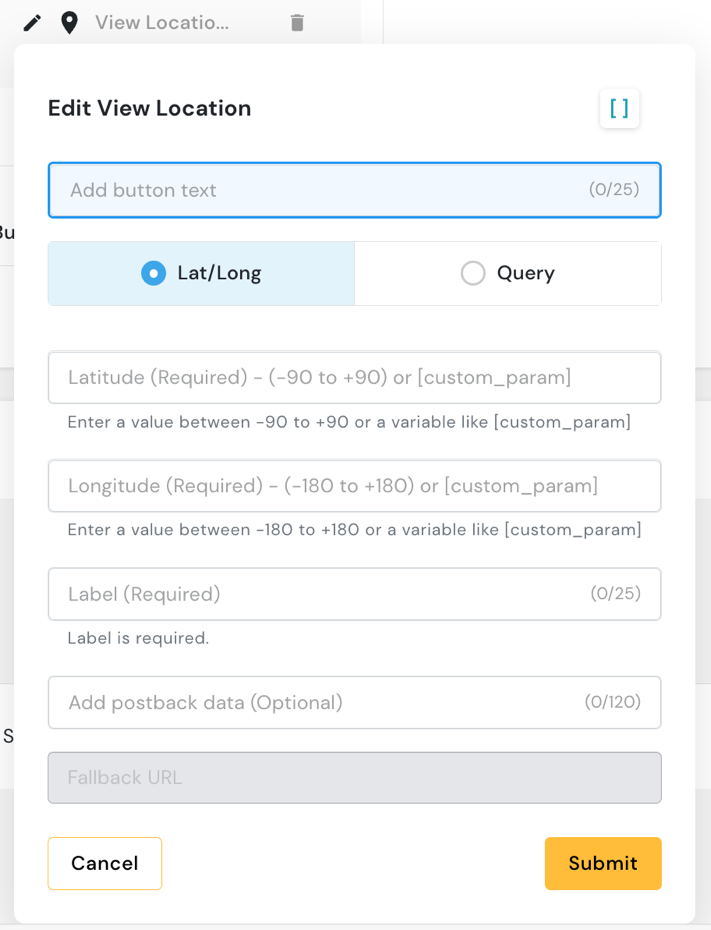
- Add suggested actions (up to 4)
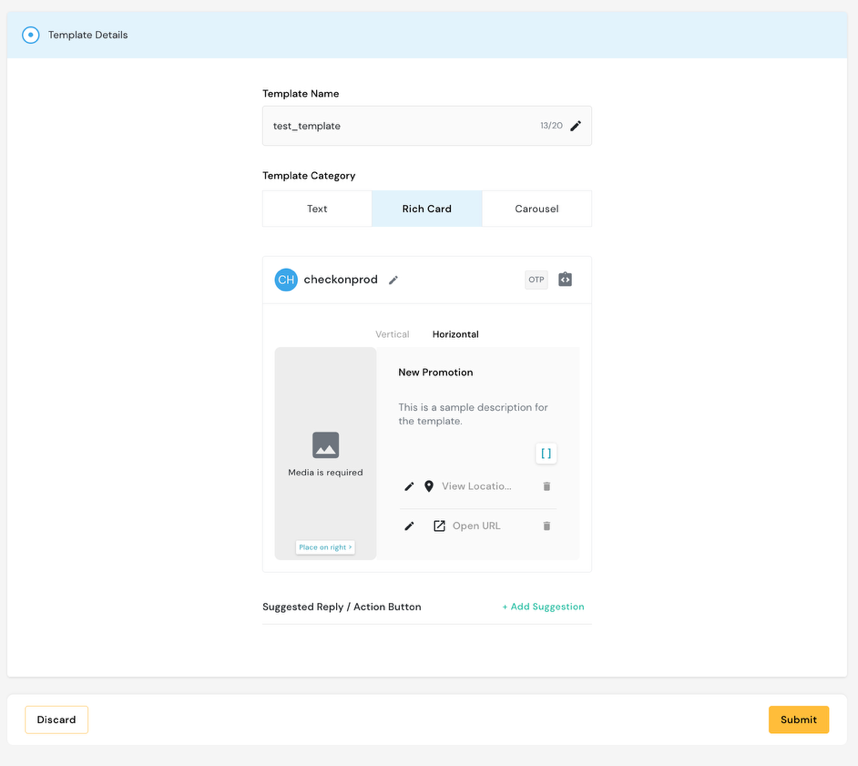
Rich Card
Build a single rich card message:
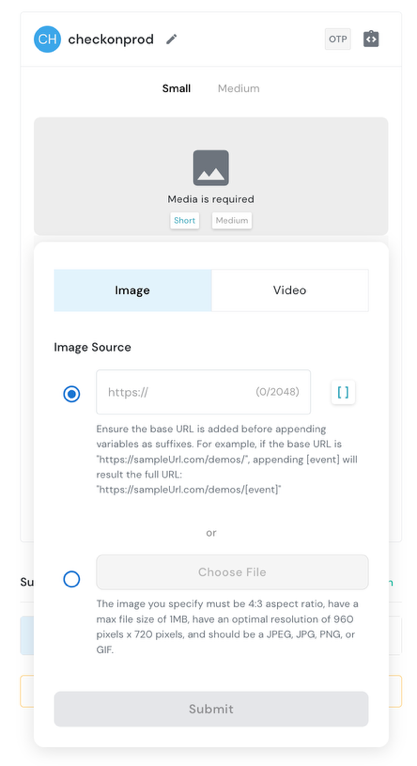
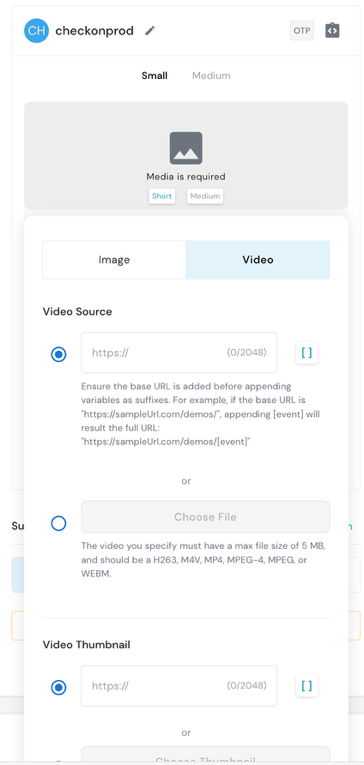
- Upload media — Image (JPG/PNG, max 1 MB) or Video (MP4, max 5 MB)
- Enter title — Short card heading
- Enter description — Body text with optional variables
- Add suggested replies — Tappable reply chips
- Add suggested actions — Interactive action buttons
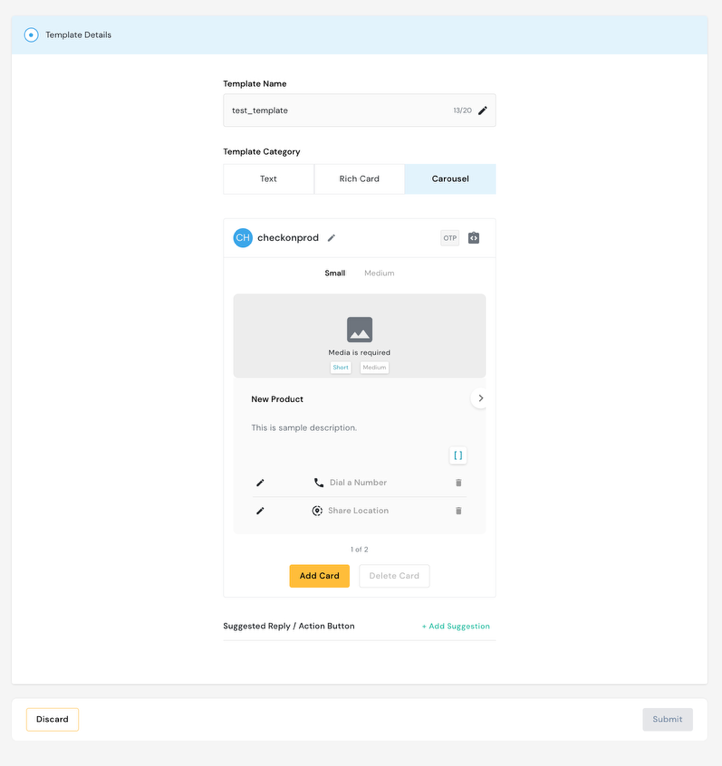
Carousel
Build a multi-card carousel:
- Set the number of cards (2–10)
- Configure each card individually:
- Upload media
- Enter title and description
- Add up to 2 buttons per card
- Ensure consistent button types across all cards
- Submit for activation
Submit Template
Once all components are configured:
- Review the template preview
- Click Submit
- The template status changes to Pending
- Sinch India reviews and activates the template
- Status updates to Active once approved
Screenshots
Create Template
Text Message
Rich Card
Rich Card Carousel
Media Upload
Suggested Replies
Suggested Actions